How to connect your Lightspeed POS with Tavola
Learn how to link your Lightspeed Retail (X-Series) POS with Tavola in seconds using our secure automatic OAuth 2.0 connection flow.
Connecting your **Lightspeed Retail (X-Series)** POS with Tavola is completely automated and secure. Once linked, all closed register sales, products, and inventory items synchronize in real-time, allowing Tavola to automate demand forecasts, recipe cost tracking, and theoretical inventory alerts. In this guide, we show you how to link your Lightspeed account in seconds. Make sure you meet the following: 1. An active **Tavola** account subscribed to the **Elite Plan**. 2. An active **Lightspeed Retail (X-Series)** account with administrator credentials. 1. Log in to your **Tavola Dashboard**. 2. From the sidebar navigation, click on **Settings** and select the **Integrations** tab. 3. Locate the **Lightspeed** card. 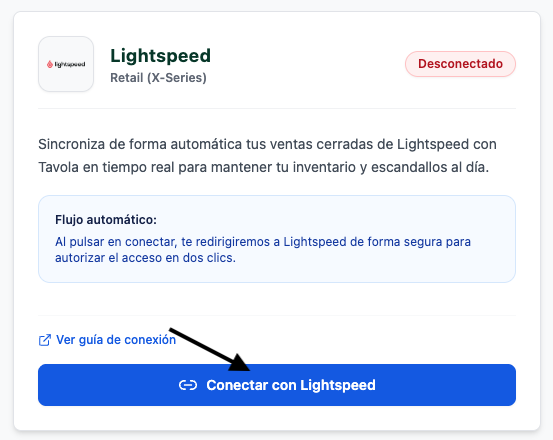 1. Under the Lightspeed card, click the **Connect Lightspeed** button. 2. You will be redirected securely to the official **Lightspeed Secure Retail Portal** authorization page. 3. If prompted, enter your Lightspeed administrator credentials to log in. 4. Select the specific store or outlet prefix you wish to grant access to. 5. Review the requested permissions (read-only access to products, sales, and webhooks registration) and click **Grant Access** or **Authorize**. 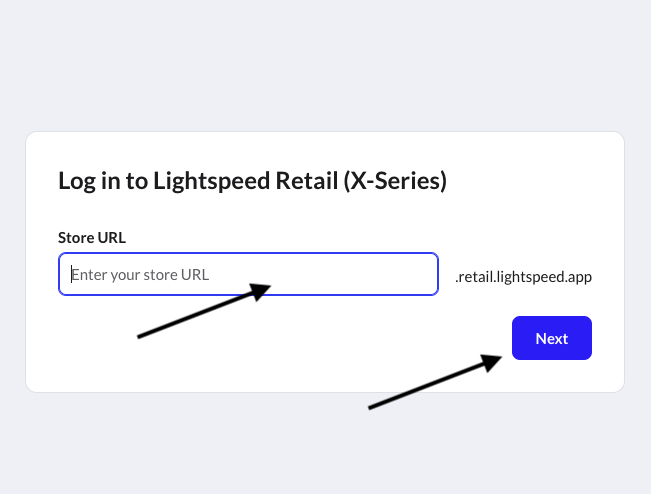 1. After authorization, Lightspeed will redirect you back to your Tavola dashboard. 2. You will see a success message: *"Lightspeed connected and configured successfully!"*. 3. The Lightspeed card status badge will now show green **Connected**. And that's it! Tavola automatically registers its secure webhooks in your Lightspeed store. Every closed transaction will now instantly feed into your Tavola recipes and stock sheets! If you need any assistance, contact our technical support at **[email protected]**.