How to connect your Square POS with Tavola
Follow these simple steps to set up a developer application, retrieve your credentials from Square, and connect your POS with Tavola in real-time.
Connecting **Square** with Tavola provides instant, real-time synchronization of all sales transactions. This powers instant theoretical inventory updates, precise food cost calculations, and allows you to spot wastage or discrepancies immediately. Here is a step-by-step developer setup guide to retrieve your Square credentials and connect your store. Before starting, make sure you have: 1. An active **Tavola** account subscribed to the **Elite Plan**. 2. A **Square Business** account with administrator permissions. To access Square API keys, you need to register a free developer application inside Square: 1. Navigate to the **Square Developer Portal** (https://developer.squareup.com) and log in. 2. Under the **Applications** dashboard, click **+ New Application**. 3. Name your application `Tavola POS Sync` and click **Create**. 4. If Square asks **"What will you build first?"** or **"Find your audience"**, simply click **Skip** — no selection is needed. 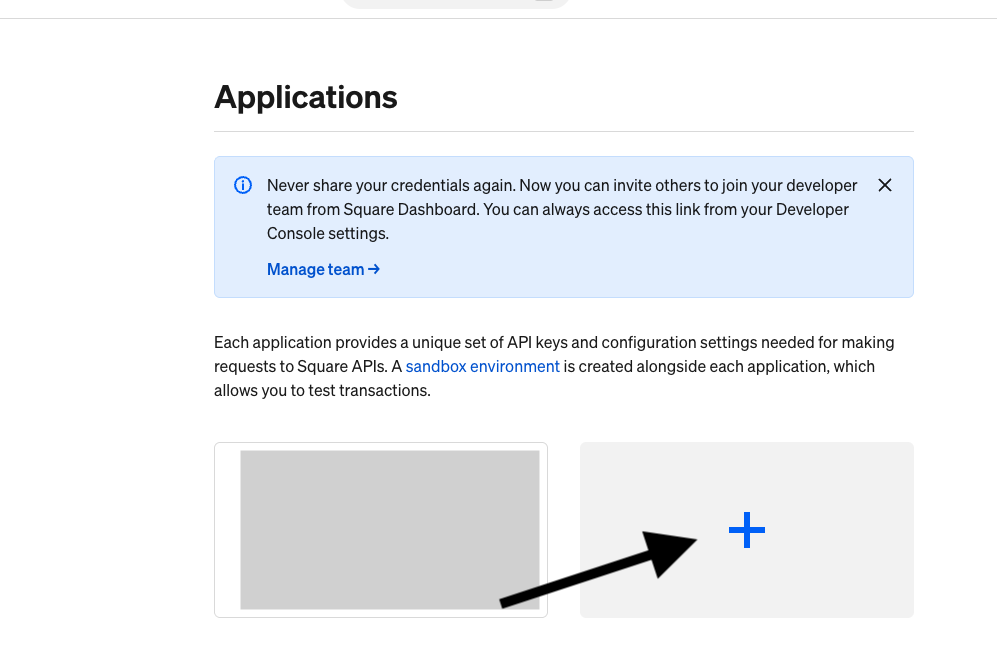 Once the application is created, you will see your sandbox and production credentials: 1. In your application settings sidebar, click on **Credentials**. 2. Ensure the environment toggle at the top is set to **Production**. 3. Copy the **Application ID** (starts with `sq-app-` or `sq-sig-`). 4. Under the **Production Access Token** field, click **Show** and copy the long token (starts with `EAAA...`). 5. Keep these details handy for Step 4. 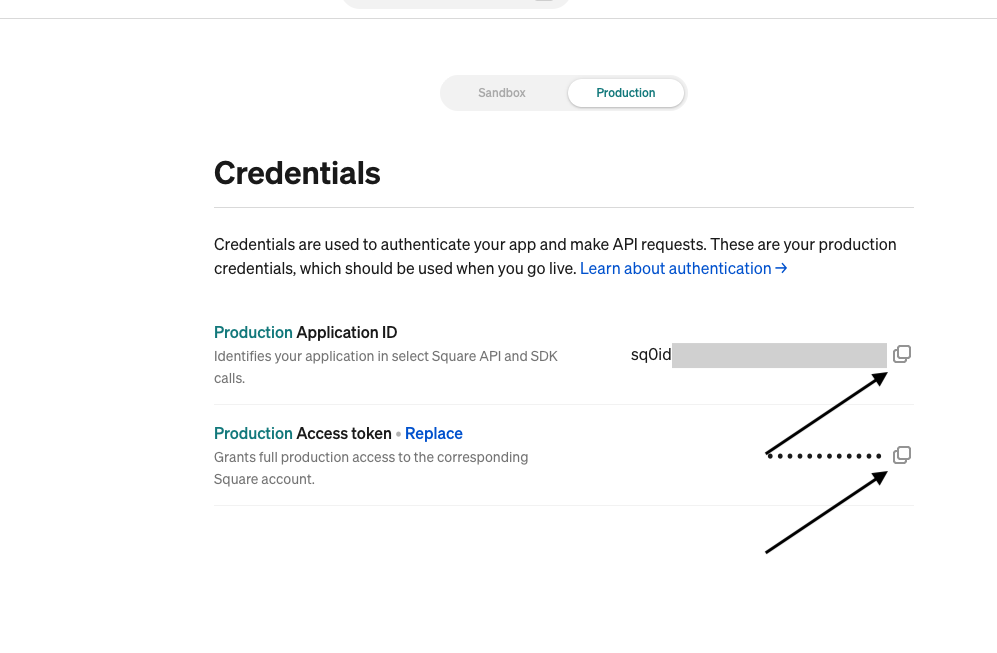 Each physical store under a Square account has a unique Location ID that must be connected: 1. In your application settings sidebar, click on **Locations**. 2. Make sure you are viewing the **Production** list. 3. Locate the row representing the physical restaurant or outlet you want to connect. 4. Copy the corresponding **Location ID** (starts with `L...`). 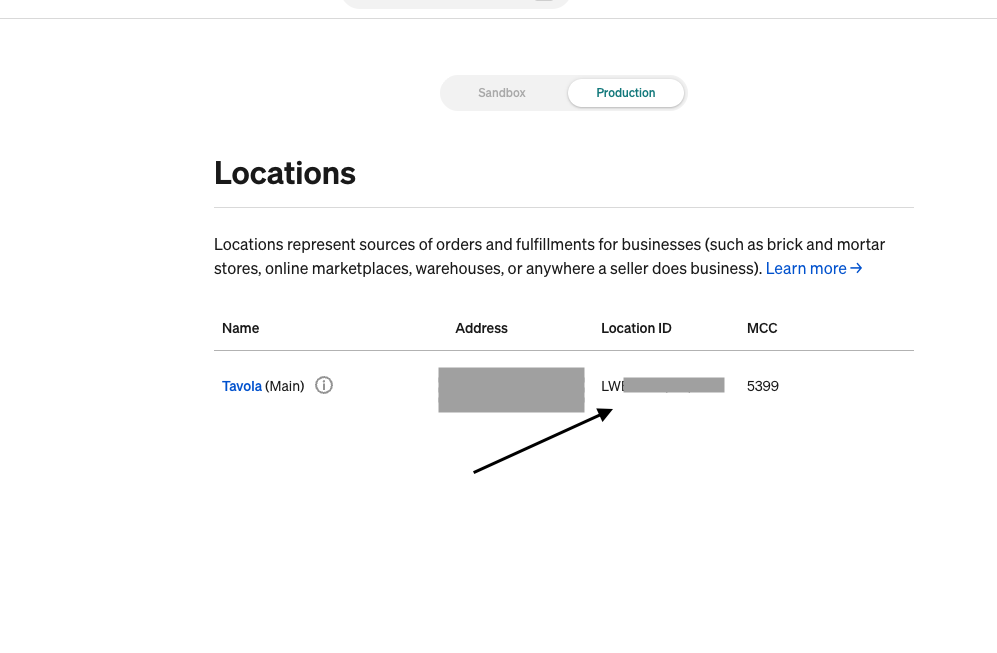 Now, open your Tavola dashboard to save the connection: 1. Log in to your **Tavola Dashboard**. 2. Navigate to **Integrations** in the sidebar settings. 3. Find the **Square** card and click **Configure Integration**. 4. Fill in the three fields: * **Application ID**: Paste the ID from Step 2. * **Access Token**: Paste the production access token from Step 2. * **Location ID**: Paste the Location ID from Step 3. 5. Click **Save**. ![Configure Square cr